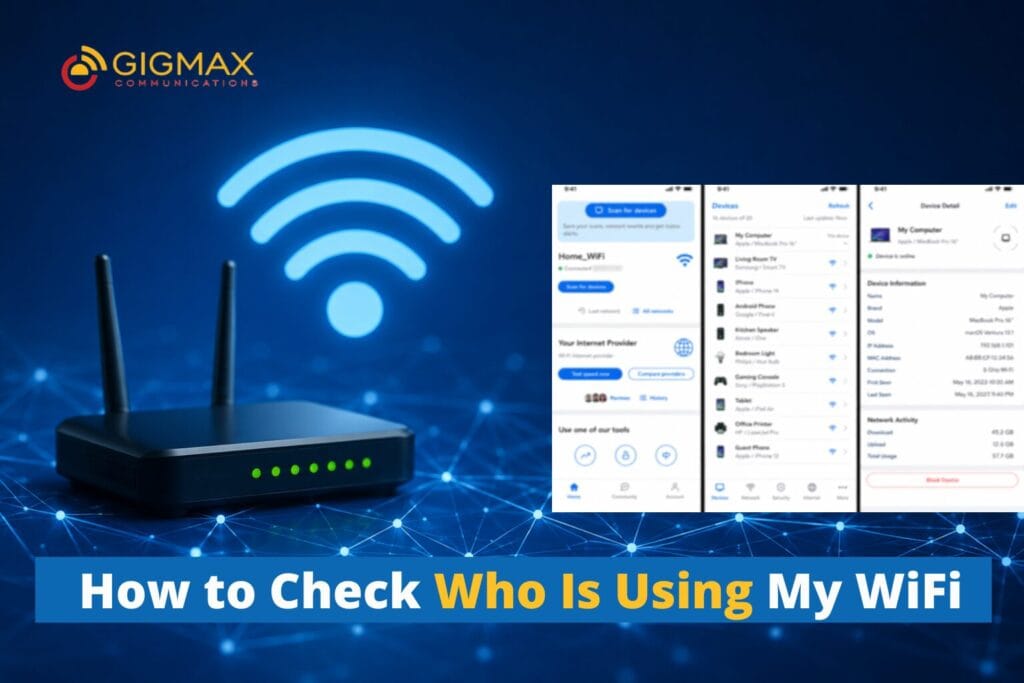
It’s frustrating to have a slow internet connection, particularly if you are paying for a high-speed broadband plan. One of the most common queries is how to check who is using my WiFi because if there are any connected devices that are not known, it can slow down internet speeds, cause buffering issues, and pose security threats as well. If your router is set loosely, then many neighbors or hackers can get access to your wireless network without permission.
Knowing how to get a connection to a WiFi network is critical for all home and business users. A secure WiFi connection helps keep your personal information safe, saves bandwidth, and enhances the performance of the internet.
Why You Should Check Your WiFi Connected Devices
If you notice your internet connection is slow, is dropping a lot or has unusual activity, you may have some sort of unauthorized users on your router. That’s why many people are looking for ways to find out how many devices connected to my WiFi and how to see if they are suspicious.
The following are some of the symptoms of WiFi stealing:
- Play games with lag on the internet often.
- Randomly disconnecting smart TVs
- Each router has an unknown name. Routers don’t have names.
- Consumptions of data that cannot be explained.
Regularly monitor connected devices for optimal internet security and speed.
How to Check How Many Devices Connected to WiFi
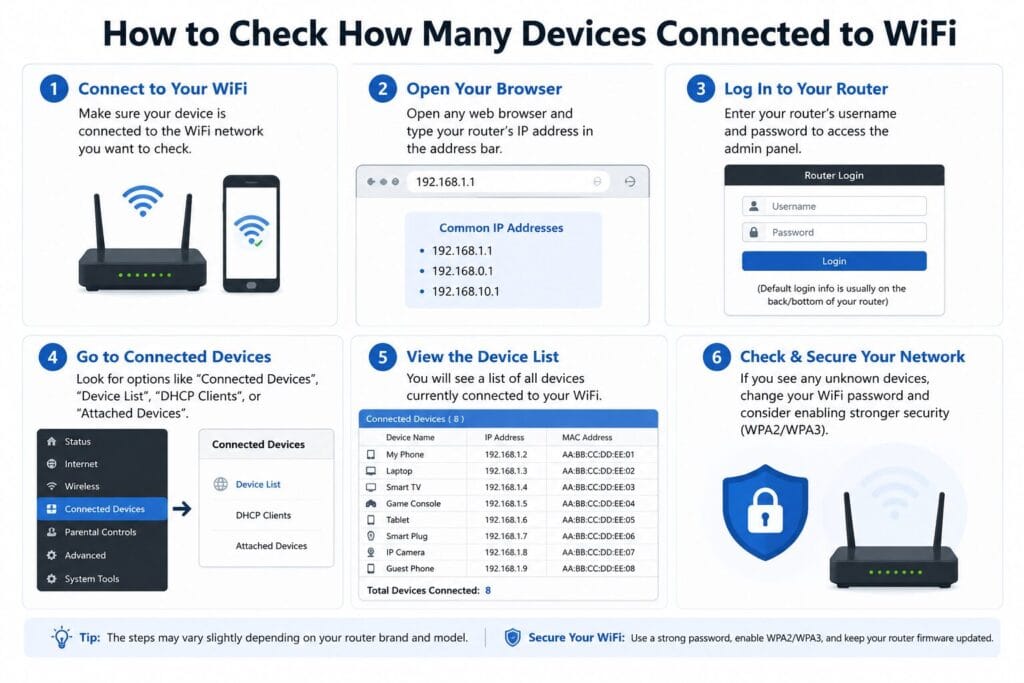
It is one of the simplest means to track your web connection, and you can discover how to check how many devices connected to WiFi account from the router dashboard.
Step 1: Open Router Settings
Go to a browser on your phone/mobile and type one of these IPs:
- 192.168.0.1
- 192.168.1.1
These addresses function for the majority of the routers.
Step 2: Log in to the Router
Enter the username and password of the router. The default data could be written on the router label if you haven’t changed them.
Step 3: Check Connected Devices
Check for areas such as:
- Connected Devices
- Device List
- DHCP Client List
- Wireless Clients
Here you can see how many devices are connected to my WiFi, their names and IP addresses. If you find unknown smartphones,
If you notice unknown smartphones, laptops, or smart devices, someone may be using your internet without permission.
How to Check Who Is Using My WiFi
The question comes to mind for many users to find out, how to check who is using my WiFi in real time? “In addition to router settings, there are also mobile applications offered by the router companies that can be used.
The most popular apps are:
- TP-Link Tether
- Netgear Nighthawk
- ASUS Router App
These apps allow you to:
- Monitor connected devices
- Pause internet access
- Block suspicious users
- Change passwords instantly
You can also identify devices by turning off your own gadgets one by one and checking which devices remain connected.
Understanding Security Type WiFi
Another crucial factor is picking the proper security type WiFi settings on your router. Security classes: prevent hackers and other users from gaining access to your network.
Common WiFi Security Types
WPA3 Security
This is the newest and most secure wireless encryption for today’s routers.
WPA2 Security
WPA2 is a widely adopted and still believed to be safe protocol for most home users.
WEP Security
WEP is now outmoded and vulnerable. Don’t use this security type, as it can be easily broken by hackers.
For maximum protection, always select WPA2 or WPA3 in your router settings.
How to Secure WiFi Network Properly
Knowing how to secure the WiFi network connections effectively is essential if you are wondering how it can be done.
Change Your WiFi Password Regularly
Create a strong password using:
- Uppercase letters
- Lowercase letters
- Numbers
- Special characters
Avoid simple passwords like the following:
- 12345678
- password
- mobile number
Rename Your WiFi Network
Do not keep default router names like
- TP-Link_123
- JioFiber
- Airtel1234
Custom names are a challenge for hackers to determine the brand of the routers.
Enable WPA2 or WPA3 Encryption
Always update your security type WiFi settings to WPA2 or WPA3 for better protection.
Turn Off WPS
WPS may make connections easier, but it can also create security risks.
Update Router Firmware
Router updates fix security vulnerabilities and improve performance.
Create a Guest Network
If visitors need internet access, use a separate guest network instead of sharing your main password.
Why WiFi Security Matters for Smart Homes
Many smart devices are used in modern homes, such as:
- Smart TVs
- CCTV cameras
- Alexa devices
- WiFi bulbs
- Gaming consoles
That is why users often search for how many devices are connected to my WiFi. Too many unknown devices can affect performance and increase security risks.
Stable speed, seamless streaming, and safer online activities are all guaranteed by network security.
Best Practices to Maintain Secure Internet Speed
To keep your connection fast and secure:
- Check connected devices weekly
- Change passwords every few months
- Remove unused devices
- Use dual-band routers
- Keep routers in central locations
Secure networks make browsing, gaming, office meetings, and online learning better.
Conclusion
Learning how to check who is using my WiFi and how to secure WiFi network settings can help protect your internet connection from unauthorized users. Monitoring connected devices, choosing the correct security type of WiFi, and regularly updating passwords are simple but powerful ways to improve internet safety.
If you want reliable broadband with strong performance and better connectivity for your home or business, Gigmax provides high-speed internet solutions designed for modern digital needs. Whether you use multiple smart devices, work from home, or enjoy online gaming, Gigmax helps deliver stable and secure internet connectivity.
FAQs
How can I see all devices connected to my WiFi?
By logging into the admin panel of your router with an IP address like 192.168.0.1 or 192.168.1.1, you can view every device linked to your WiFi. To see all of the devices that are currently using your internet connection, open the “Connected Devices” or “Wireless Clients” section.
Can I check if anyone is using my WiFi?
Yes, you can check your router’s connected device list to see if anyone is using your WiFi. Unknown devices could be a sign of illegal network access.
How do you check who is logged on to your WiFi?
Using your router dashboard or mobile router app, you can see who is using your WiFi. Smart TVs, laptops, smartphones, and other devices connected to your network will all be displayed by the system.
How do you see who is using your home WiFi?
Open the connected devices section of your router management page from a browser or app to see who is using your home WiFi. This makes it easy to keep an eye on all active users and spot questionable connections.